Social creators
A strong photo has a distracting passerby, cluttered edge, or uneven background that competes with the subject.
The main subject becomes easier to notice while the image keeps its original sense of place.
Practical photo ideas
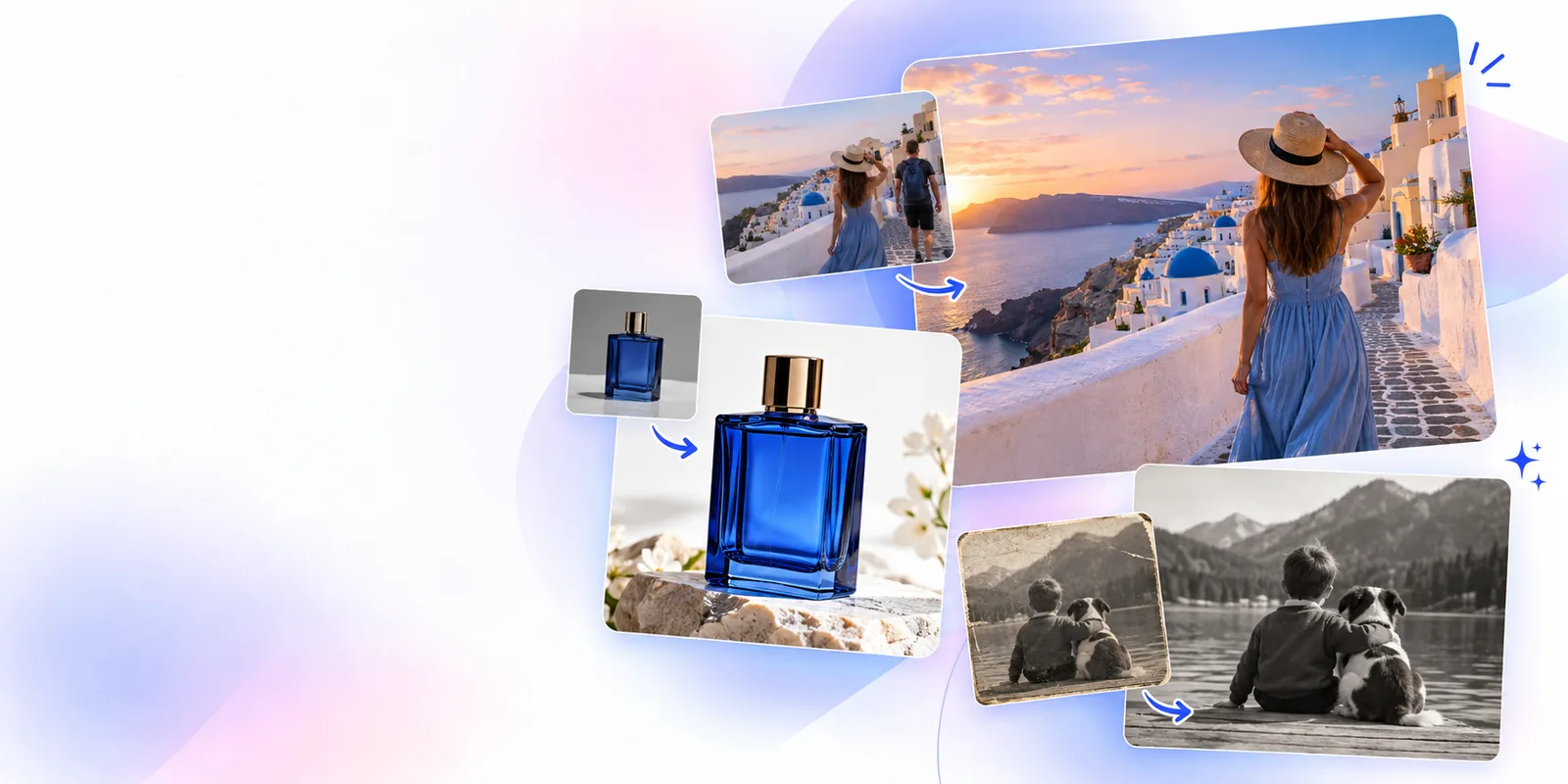
These snapedit examples free show the kinds of visual improvements people look for first: cleaner portraits, clearer subjects, stronger backgrounds, and more shareable photos.
Use cases
Most image projects already have a source photo, a clear visual problem, and a destination such as a listing, social post, family album, or presentation. The examples below focus on the point where a small improvement changes the usefulness of the final image.
A strong photo has a distracting passerby, cluttered edge, or uneven background that competes with the subject.
The main subject becomes easier to notice while the image keeps its original sense of place.
A portrait is meaningful but slightly soft, poorly lit, or less detailed than the moment deserves.
The face and important features read more clearly without turning the photograph into an obviously artificial image.
A product photo needs a cleaner presentation before it is placed in a post, catalog, or simple sales page.
The item gets more attention through a less distracting setting and a more consistent visual presentation.
A personal photo contains an unwanted object or background detail that pulls attention away from the memory.
The image feels more intentional while preserving the people, setting, and story that made it worth keeping.
Prompt to result
Use the examples as starting points rather than fixed recipes. Describe the subject, identify the distraction or weakness, and state what should remain natural.
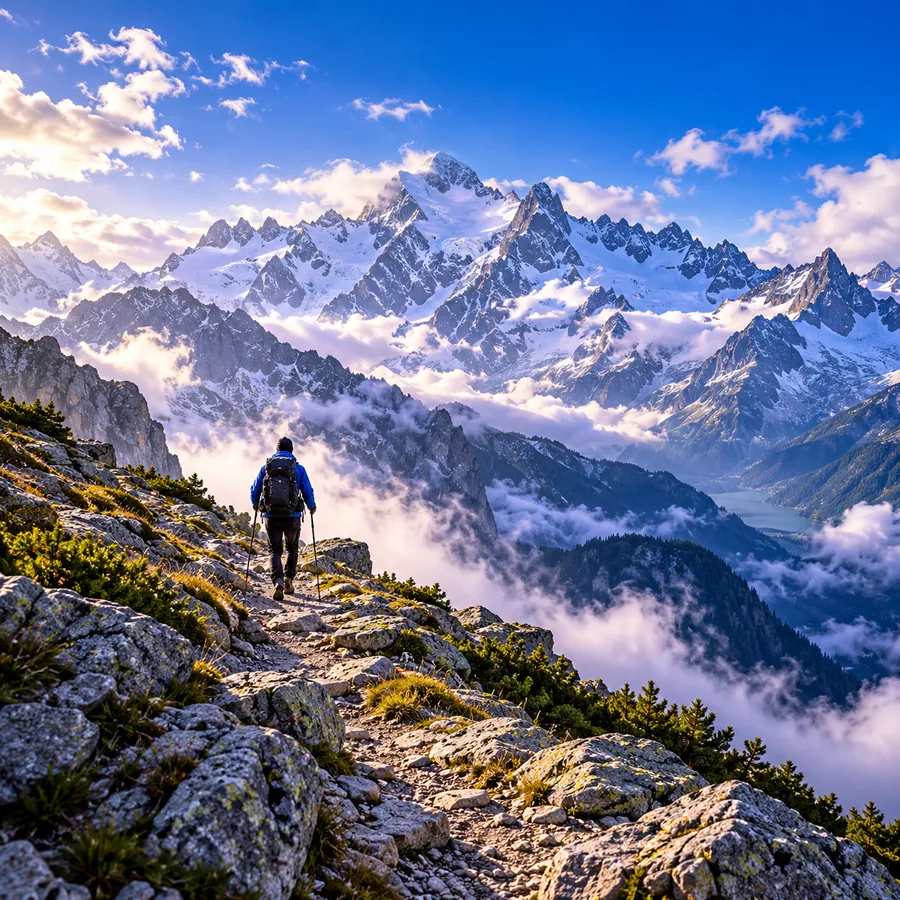
Enhance this portrait with clearer facial detail, natural skin texture, and balanced outdoor light.
 Enhance
result
Enhance
result
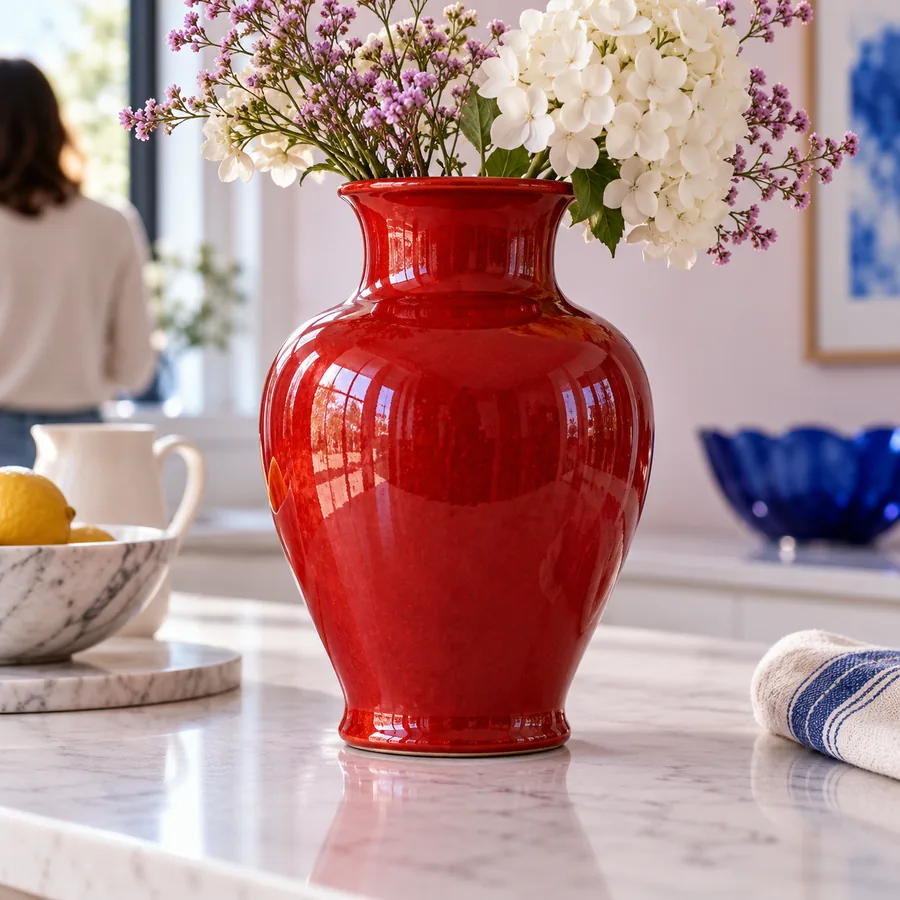
Remove the person in the background and reconstruct the outdoor scene naturally.
 Remove
result
Remove
result
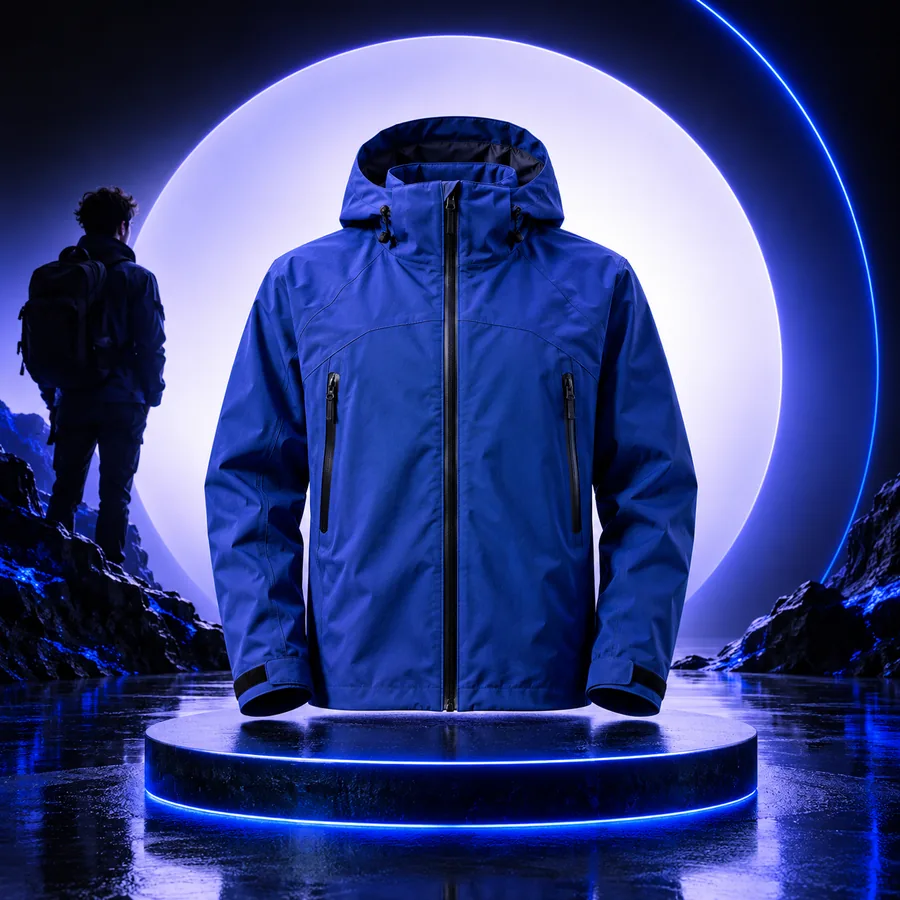
Make this photo brighter and more social-ready while keeping the people and colors natural.
 Polish
result
Polish
result
Place the subject on a clean studio-style background with soft light and realistic edges.
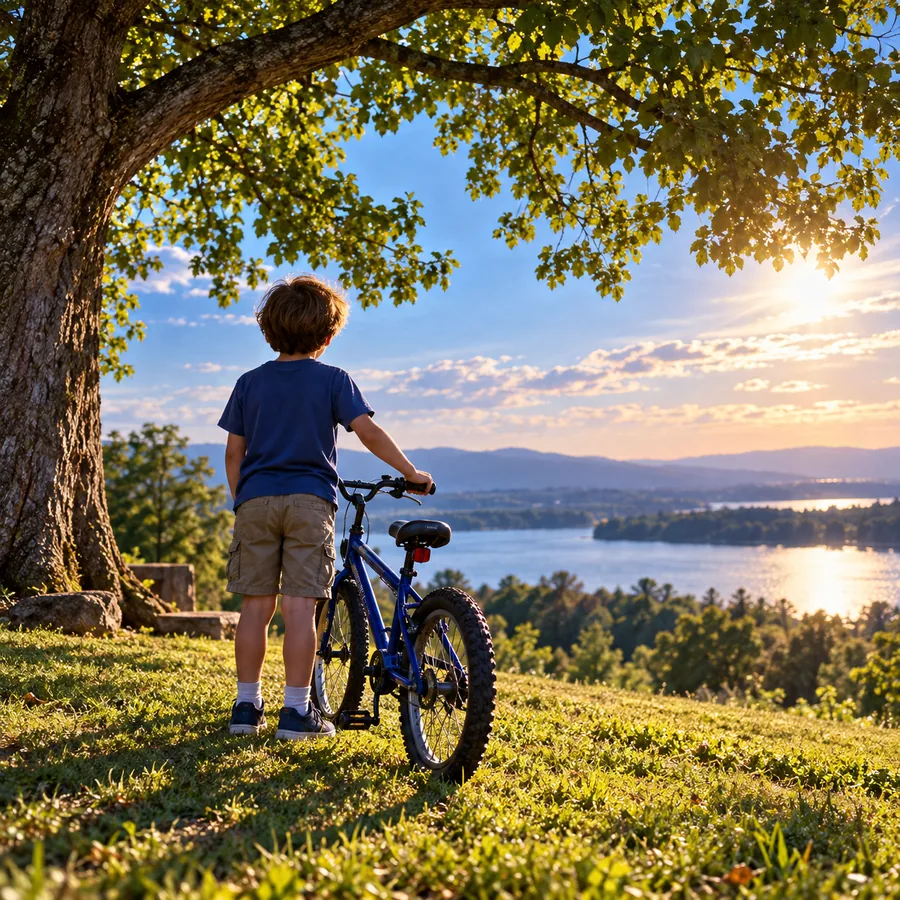 Background
result
Background
result
Adapt each prompt by naming the subject, the unwanted detail, and the visual quality you want to preserve.
Repeatable workflows
A useful example is easier to reproduce when the job is broken into a small sequence. These workflows keep the request specific without forcing every image into the same treatment.
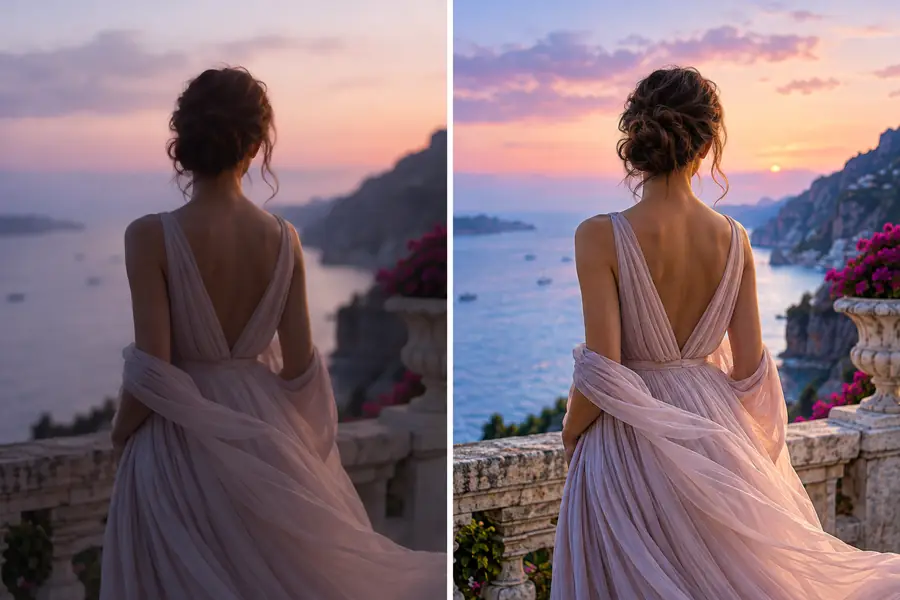
Start with the face and the lighting problem, then describe the level of natural detail you want. This keeps the edit focused on clarity rather than changing the person’s appearance.
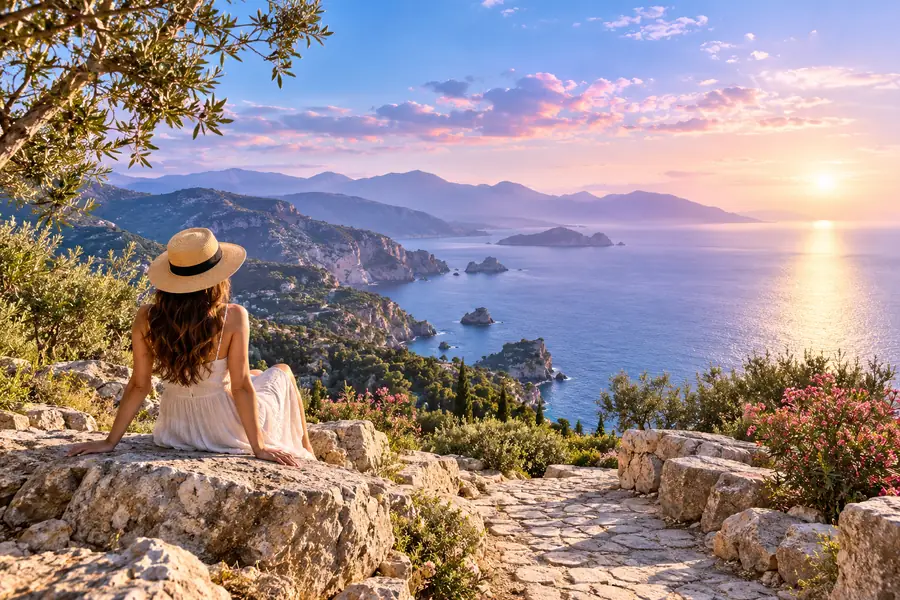
Point to the object or person that should disappear and explain what the surrounding scene should look like afterward. Specific context helps the intended background remain coherent.
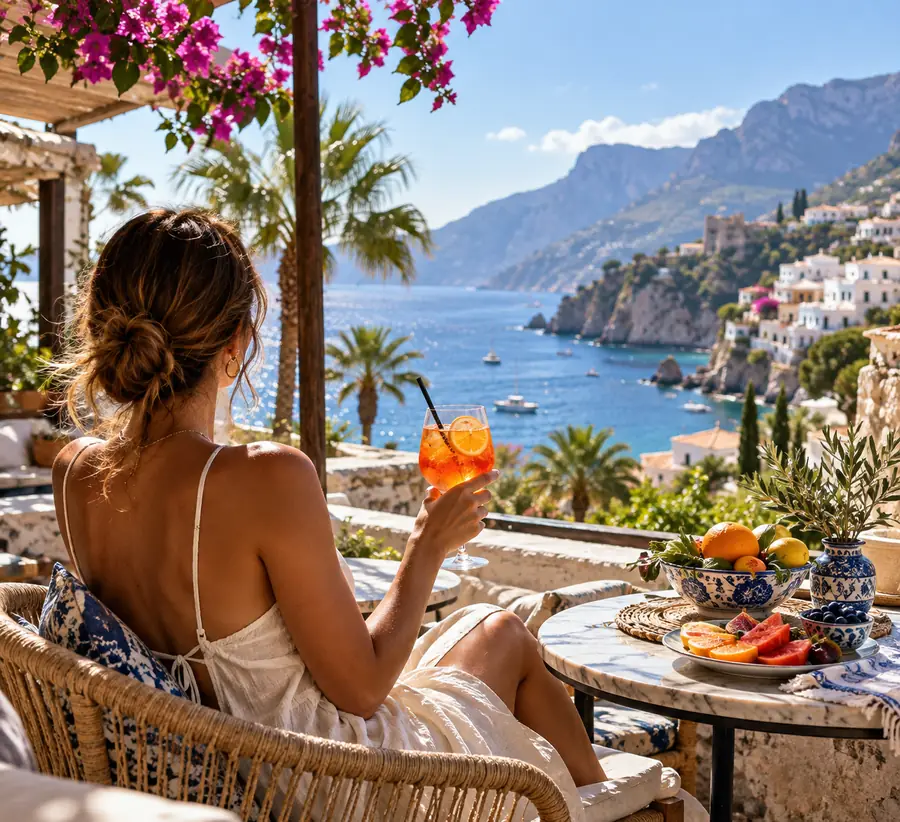
Describe the destination and the mood you want, such as brighter, cleaner, or more attention-focused. Keep the people, product, or main subject explicitly protected in the request.
Choose the right direction
The best approach depends on what is wrong with the source image and what must stay unchanged. Use the simplest branch that matches the actual job.
Option 1
Choose an enhancement-focused request.
It keeps the edit centered on detail, lighting, and overall clarity instead of changing the composition.
Option 2
Choose a removal-focused request.
Naming the distraction and the surrounding scene gives the edit a clear reconstruction target.
Option 3
Choose a background or social-polish request.
The destination guides the visual treatment while the prompt can protect the main subject and important colors.
Compare the change
A before-and-after view makes subtle improvements easier to judge. Look first at the subject, then at edges, texture, and any area that was reconstructed.
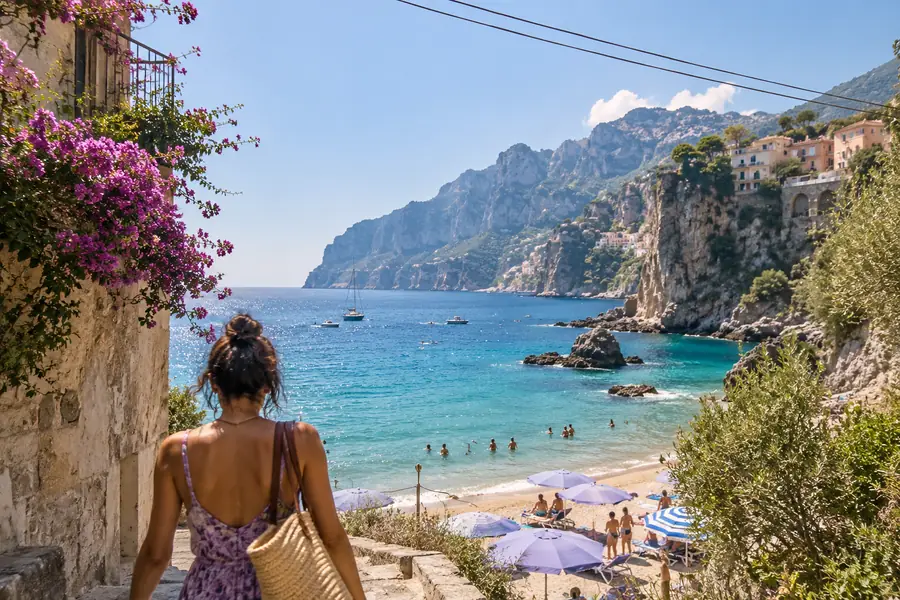
Before
Drag the divider or use the range control to inspect the same frame at different widths.
After
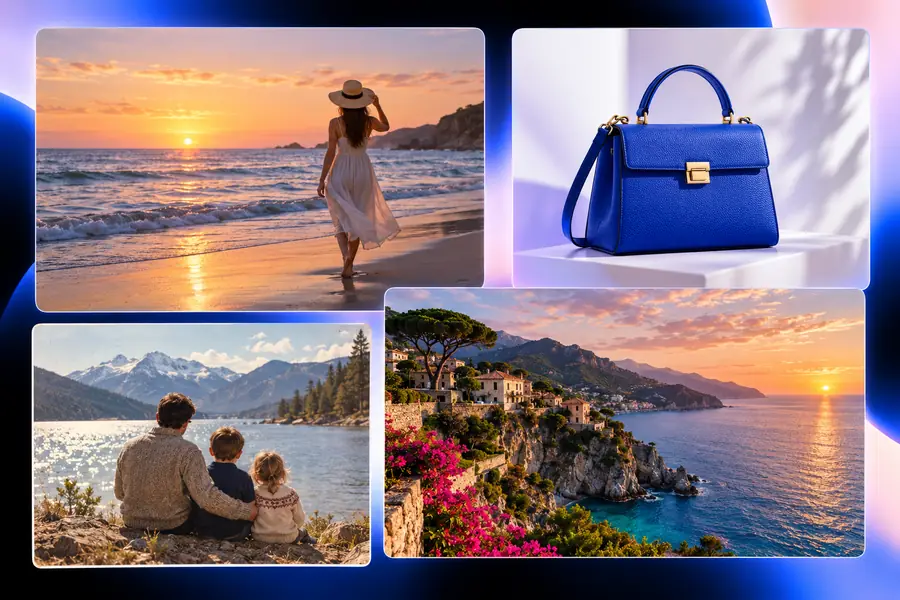
What the examples cover
The page brings several common photo jobs into one place, so you can compare the requested change before deciding how to describe your own image.
Make your own version
Choose the example closest to your image, copy its structure, and replace the subject or problem with your own details. A focused request makes it easier to judge whether the result solves the original photo problem.
Questions about examples
These answers explain how to use the examples as practical references for your own image-editing request.
They give you visual references for common photo-editing goals, such as improving a portrait, removing a distraction, or preparing an image for sharing. You can use the accompanying prompt structure as a starting point for describing your own image.
Yes. Pick the example closest to your source photo, then change the subject, unwanted detail, or desired mood in the prompt. Keep the request specific about what should remain natural or unchanged.
Name the main subject, identify the problem, and describe the intended result. It also helps to mention important constraints, such as preserving facial expression, product edges, people, colors, or the original setting.
Review the before and after at the same framing, then inspect the subject, edges, texture, and reconstructed areas. A result should solve the stated problem while still looking consistent with the source photograph.