Online sellers
A product photo includes a room, table, or busy shelf behind the item.
The product becomes the visual focus, making the image easier to reuse in a catalog or listing.
Focused image editing
Snapedit remove background is a focused entry point for separating a person, product, or object from its surroundings. Use the workflow below to prepare the image, review the result, and decide whether another Snapedit tool fits better.
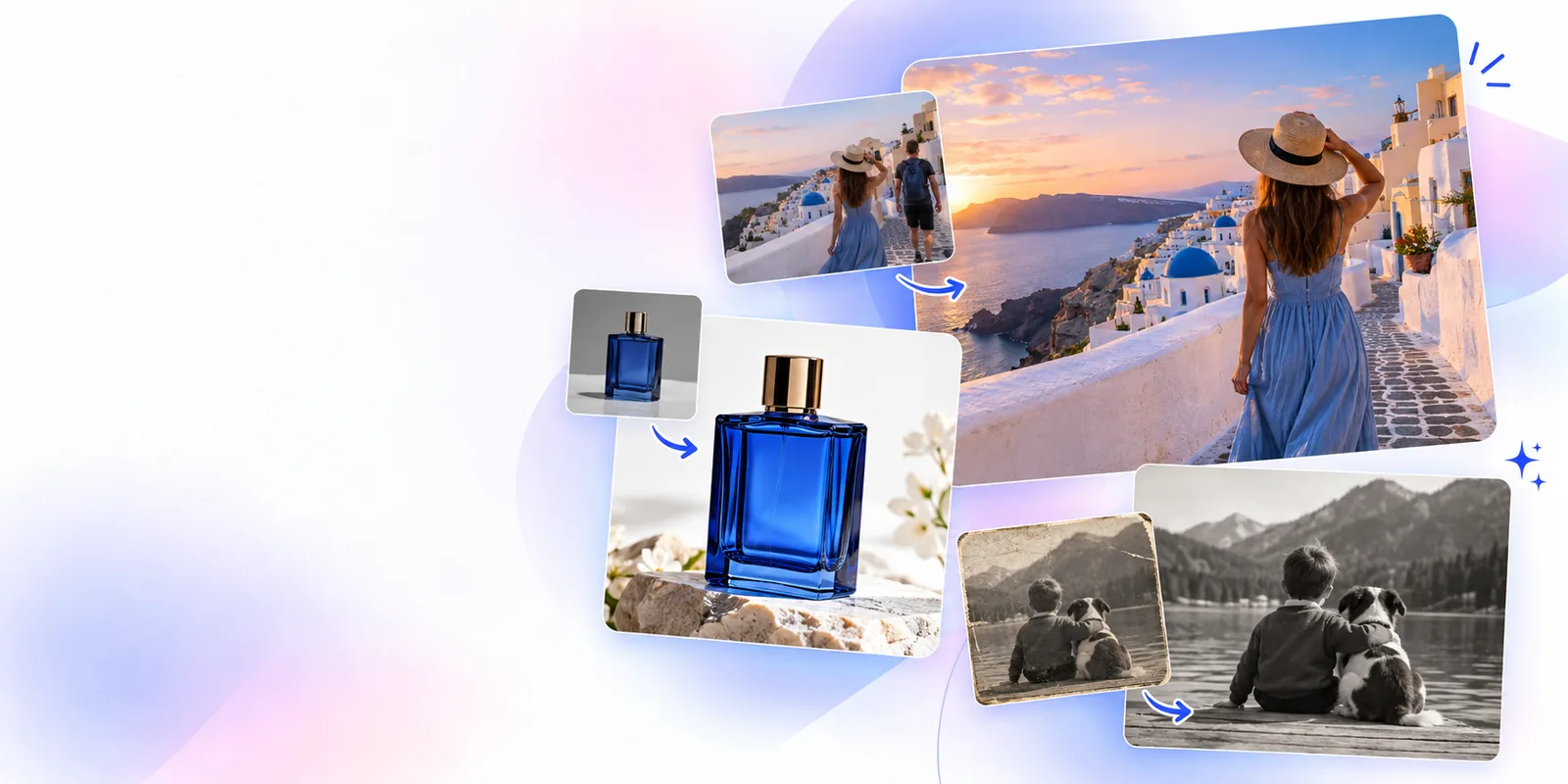
Choose the right entry point
The background route is best when separation is the main task. Use a neighboring Snapedit capability when the unwanted content is smaller, text-based, or part of an image that needs broader enhancement.
A product photo includes a room, table, or busy shelf behind the item.
The product becomes the visual focus, making the image easier to reuse in a catalog or listing.
A person needs to stand apart from a distracting street, room, or outdoor scene.
The subject has a cleaner edge and a simpler setting for a profile, post, or design.
A graphic contains lettering, labels, or a watermark-like element that should be addressed separately.
You can keep the background task distinct and then use the more relevant text-focused workflow.
A source image needs a clean subject before it is placed into a new layout or campaign concept.
The isolated subject is easier to assess against the intended composition before final design work.
Simple working sequence
Keep the task narrow: identify the subject, separate it from the surrounding scene, and inspect the edges before you export or continue editing.
Start with the clearest version of the photo you have. A visible subject and reasonable contrast give the editor more useful visual information.
State what should remain and what should disappear, especially when the image contains more than one person, product, or prominent object.
Check hair, fingers, thin handles, transparent areas, and nearby objects. If the edge is not convincing, revise the instruction or choose a less complex source.
Know the edges
A focused background workflow is useful, but it does not remove every kind of image problem. These caveats help you set the right expectation before relying on the result.
Hair, fur, foliage, smoke, thin wires, and overlapping objects may not separate as cleanly as a solid subject against a plain scene.
What to do instead
Use a sharper source with stronger contrast and review the perimeter at a larger size.
Removing the surrounding scene does not automatically fix lighting, blur, blemishes, perspective, or unrelated distractions on the subject.
What to do instead
Handle the background first, then use an enhancement or retouching workflow for the remaining image issues.
A group photo or scene with several important objects can make it unclear which elements belong in the foreground.
What to do instead
Name the subject you want to preserve and describe whether secondary people or objects should remain.
Glass, lace, veils, reflections, and semi-transparent materials can be interpreted as part of the background.
What to do instead
Compare the edited result with the original and keep a copy of the source for manual correction if needed.
Prompt-led examples
These examples show how a short, specific instruction can define the subject and the unwanted scene without overloading the edit.
Keep the person in the center and remove the outdoor background, preserving hair, clothing edges, and the full body.
 Portrait
result
Portrait
result
Remove everything behind the main product and keep the complete product silhouette, including small protruding details.
 Product
result
Product
result
Isolate the main subject from the background and preserve fine edges around the face, hair, hands, and clothing.
 Close-up
result
Close-up
result
Keep the selected foreground subject and remove the surrounding scene without cropping the subject or cutting off its edges.
 Scene
result
Scene
result
Adapt each prompt by naming the subject, the parts to preserve, and the background elements that should be removed.
Continue with context
Move to the neighboring route when the main problem is not the surrounding scene itself.
Bring a clear source image and a precise instruction to the Snapedit workflow. Start with the surrounding scene, inspect the edges, and keep the original available while you decide what to do next.
Common questions
Answers for visitors deciding whether this focused Snapedit entry point matches the edit they need.
It focuses on separating a chosen foreground subject from the surrounding scene. The useful result is a cleaner subject boundary that can be reviewed before you continue with another edit or layout.
No. Background removal addresses the area around a subject, while object removal targets a particular unwanted element inside the image. Choose the route that matches the location of the thing you want changed.
Name the subject that must stay and describe the surrounding area that should go. Mention details such as hair, hands, product edges, or secondary objects when those boundaries matter.
It can be worth trying, but complex edges and overlapping subjects need closer inspection. Use a sharper, higher-contrast source when possible and keep the original so you can compare the result.
Revise the instruction with a more specific description of the subject and its fine edges, then inspect the new result carefully. If the remaining issue is unrelated to the background, switch to the Snapedit tool designed for that separate problem.