Snapedit

Photo enhancement

Use snapedit enhance photo workflows with confidence

Snapedit enhance photo tasks are easiest when you start with a clear image, choose a focused improvement, and review the result before sharing. This guide covers the workflow, useful options, and common limits.

Review the result before sharing
Bright edited photograph presented in Snapedit visual style

Start with the right prerequisites

A little preparation helps an enhancement tool distinguish useful detail from blur, compression, or visual clutter.

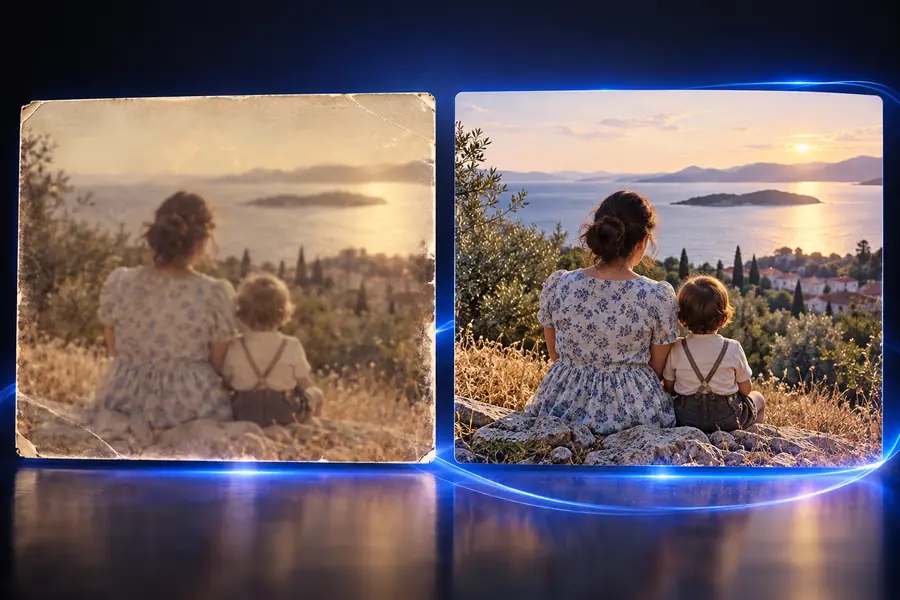
Low-detail photograph before enhancement
Before
Clearer outdoor photograph after enhancement
After

Use the clearest original available, then compare the result at the same size.

BeforeAfter

Follow one complete enhancement run

Use this three-part process to keep the edit intentional instead of applying changes without checking what the image needs.

  1. 1

    Choose the original

    Upload the least compressed version of the image you have. A larger source usually gives the enhancement process more visual information to work with.

  2. 2

    Set the improvement

    Describe the result you want in plain language, such as clearer facial detail, improved definition, or a more balanced portrait. Keep the request focused on one main goal.

  3. 3

    Inspect and export

    Review faces, fine lines, edges, text, and smooth areas at full size. Keep the result only when it still looks natural for the way you plan to use it.

See where enhancement fits

Different image types need different checks. These examples show when to pair enhancement with another focused editing path.

Portrait creator

A softly focused headshot needs more visible facial detail without making skin look artificial.

Try a moderate enhancement, then inspect eyes, hair, and skin transitions before publishing. If the background also needs work, use snapedit remove background to separate the subject cleanly.

snapedit remove background

Product seller

A small product photo needs clearer edges and a more readable shape for a listing or catalog.

Enhance the source first, then check logos, labels, and straight edges. For unwanted objects in the frame, the snapedit remove object workflow may be a better next step.

snapedit remove object

Social publisher

An older outdoor image looks dull after repeated resizing and social-media compression.

Work from the original file when possible and compare the enhanced version against the source at matching dimensions. Avoid treating enhancement as a substitute for a new photograph.

snapedit remove object

Document editor

A screenshot or poster contains distracting lettering that competes with the main subject.

Enhancement may improve overall clarity, but removing unwanted lettering is a separate task. Consider whether Can SnapEdit remove text from images? is the more relevant route.

Can SnapEdit remove text from images?

Compare the available options

Choose the narrowest edit that matches the problem. Enhancement is useful for overall clarity, while the other paths target specific elements.

Enhance photo Focused editing path
Main purpose Improve perceived clarity, definition, or detail across the image Change one selected element, such as an object, background, or text
Best starting image A soft, small, noisy, or compressed photograph An image with a clearly identifiable area to remove or replace
Prompt focus Describe the quality or detail you want to improve Describe the object, background, or lettering that should change
What to inspect Faces, hair, fine texture, edges, and smooth gradients Selection boundaries, replacement areas, and preserved subject details
Typical risk Over-sharpening, invented texture, or unnatural facial detail Visible seams, halos, incomplete removal, or altered surroundings
Best follow-up Compare at full size and keep the most natural version Review the edited area closely before combining it with other edits
Use when The whole photograph needs a restrained clarity improvement One specific distraction is the main reason the image needs editing

Make the result look intentional

A good enhancement should support the photograph, not announce itself. Use these checkpoints while reviewing the output.

Close portrait showing improved detail and natural texture Portraits

Step 1

Preserve natural faces

Portraits can look sharper while still retaining believable skin texture. Zoom in on eyes, teeth, hair, and the outline of the face; if those areas look painted or overly smooth, reduce the strength or try a more restrained request.

  • Check eyes and hair at full size
  • Avoid replacing natural texture with plastic-looking smoothness
Detailed image with crisp edges and readable visual elements Detail

Step 2

Protect fine edges and text

Small products, signs, and screenshots contain high-contrast details that can expose errors quickly. Compare lettering, corners, and straight lines with the original before using the enhanced image in a listing or post.

  • Inspect logos and lettering
  • Look for halos around high-contrast edges
Enhanced photograph prepared for a polished final presentation Output

Step 3

Match the final use

An image for a social post may need a different balance from one intended for print or a product page. Review the final file at the size and crop where people will actually see it, rather than judging only the enlarged preview.

  • Check the final crop and display size
  • Keep the version that looks natural in context

Send a clear image and a specific improvement request, then review the result against the original. Start with a restrained edit and use a focused Snapedit workflow when the problem is limited to one area.

Ready to refine a photograph?

  • Start from the original file
  • Describe one clear improvement
  • Review faces, edges, and texture
Enhance my photo

Snapedit enhance photo FAQ

These answers address the most common questions around using Snapedit for photo enhancement.

It refers to using Snapedit to improve the apparent clarity or detail of a photograph. The useful starting point is a specific goal, such as making a soft portrait clearer, rather than asking for every possible change at once.

It may improve the appearance of a soft or low-detail image, but enhancement cannot reliably recover information that was never captured. Review faces, text, and fine edges closely because stronger processing can create details that look unnatural.

No. Enhancement addresses overall image quality, while object removal targets a particular item or person in the frame. If one distraction is the main issue, a focused removal workflow is usually the clearer choice.

Compare the result with the original at the same viewing size, then inspect important details at full size. Pay particular attention to facial features, hair, lettering, straight edges, halos, and areas that should remain smooth.

Explore image tools
Explore image tools