Snapedit

Focused image editing

Can SnapEdit remove text from images? With Snapedit

Can SnapEdit remove text from images? This focused guide explains how to approach unwanted words, labels, captions, and marks while keeping the surrounding picture coherent.

Review the result before saving
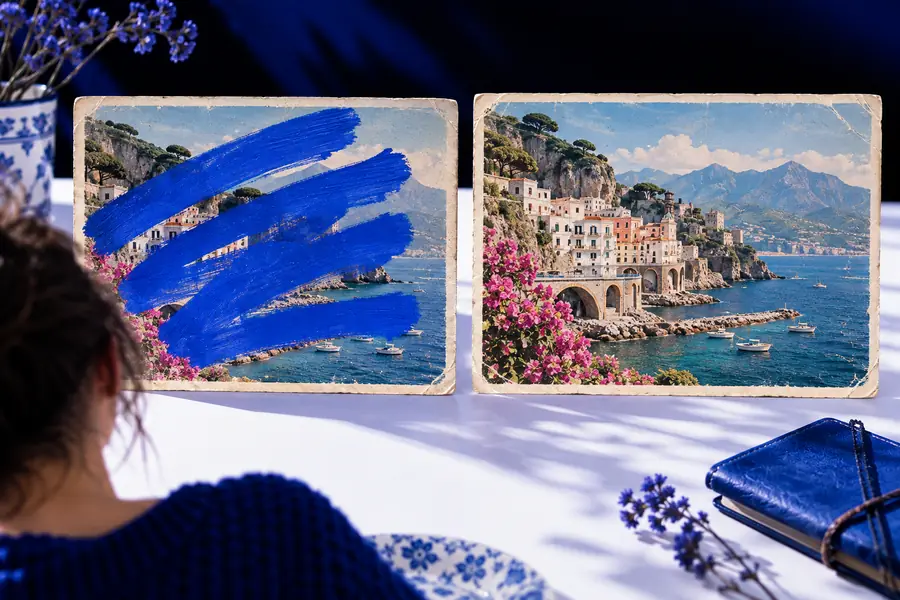
AI image editing workspace with a before and after photograph

This entry point vs the general one

Text removal is a narrower task than general object cleanup. The distinction matters because letters have edges, spacing, contrast, and repeated patterns that can make an edit look visibly patched.

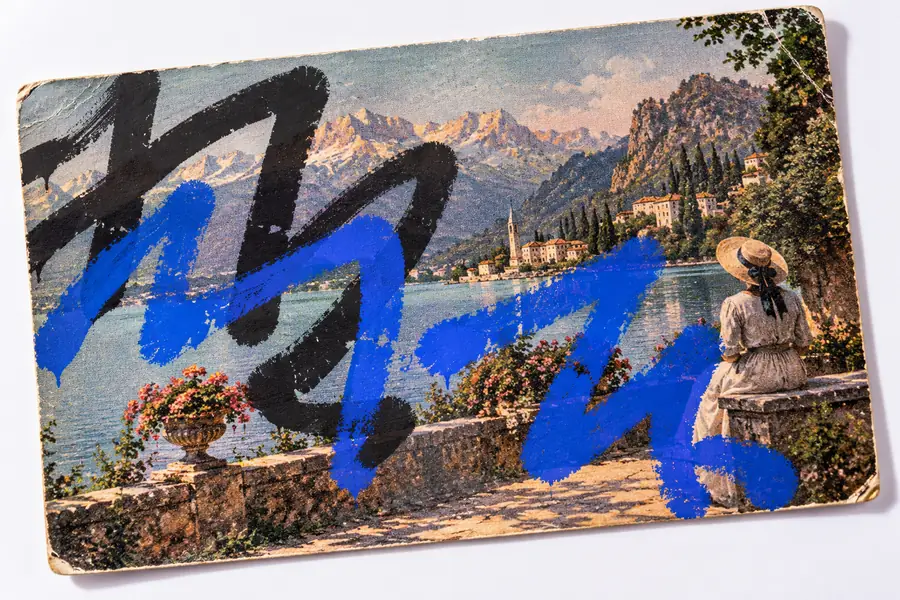
Image containing unwanted overlaid text
Text present
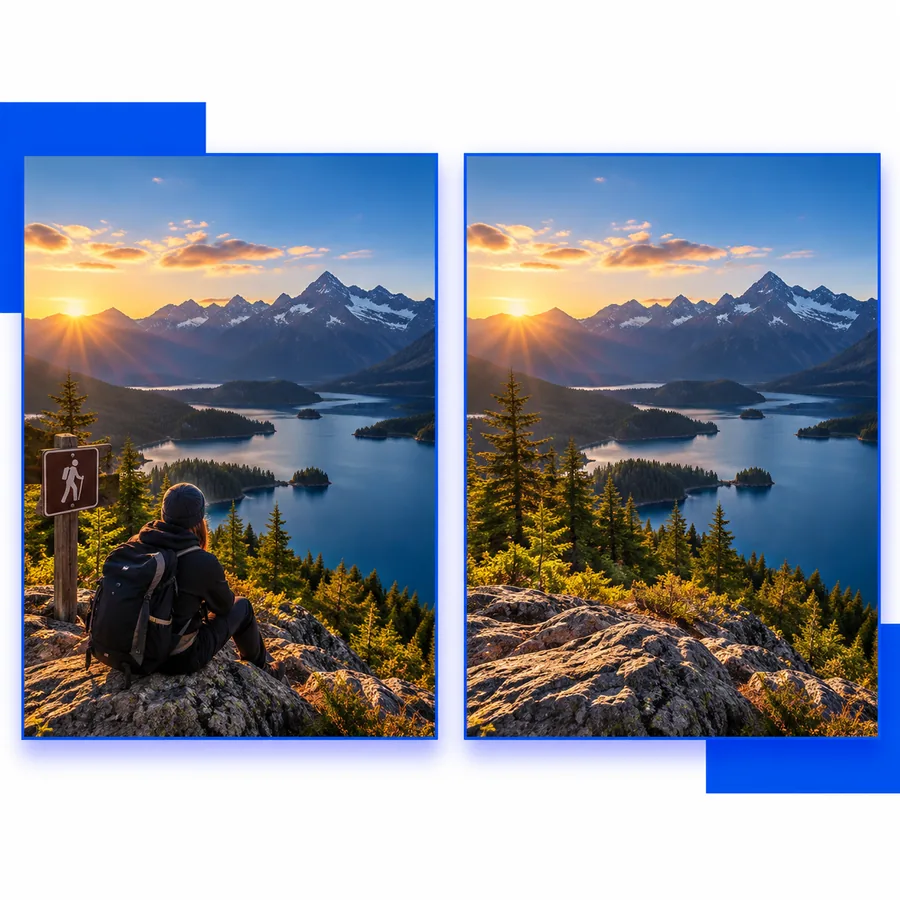
Outdoor photograph with the unwanted text area restored
Text removed

The 3 things only it does

A focused text-removal workflow can be judged by three practical jobs: identifying the right letters, rebuilding what they covered, and preserving the image around the edit.

  1. 1

    Mark the unwanted words

    Describe or indicate the lettering that should disappear, including its position and whether nearby marks must remain.

  2. 2

    Rebuild the covered area

    The edit should replace the text with surrounding color, texture, lines, or background detail instead of leaving an obvious blank patch.

  3. 3

    Check the edges and context

    Zoom in on borders, shadows, faces, product details, and repeated patterns before accepting the finished image.

Text removal examples

These example prompts show the kind of precise instruction that makes an image-editing request easier to interpret.

  1. 1 prompt, verbatim
    Remove the small white watermark from the lower-right corner while preserving the portrait and background texture.
    Targeted cleanup Portrait · corner text
    Portrait prepared for removal of a small overlay Watermark result
  2. 2 prompt, verbatim
    Remove the printed sign text from the wall and reconstruct the matching brick pattern behind it.
    Background repair Outdoor scene · textured wall
    Outdoor photograph with a distracting sign or caption Sign text result
  3. 3 prompt, verbatim
    Erase the temporary label on the package and keep the product shape, lighting, and surrounding surface unchanged.
    Object-aware edit Product photo · label area
    Product image with unwanted lettering Label result

Adapt each prompt by naming the exact text, its location, and the texture or object that must remain untouched.

Text removal for real image tasks

Different users describe the same edit in different ways. These starting points connect text cleanup with the related Snapedit workflows that may better fit the rest of the image.

Travel photographers

A date stamp, location label, or accidental caption distracts from an otherwise useful trip photo.

Use the text-removal request for the lettering, then review the repaired sky, water, or masonry. For a larger unwanted subject, see snapedit remove object, which focuses on taking out people or things rather than words.

snapedit remove object

Online sellers

A temporary price sticker or old packaging label remains in a product photograph.

Describe the label and preserve the package edges, shadows, and material texture. If the surrounding scene also needs isolation, snapedit remove background covers the separate background-removal use case.

snapedit remove background

Portrait editors

A social caption, watermark, or small overlay crosses a clean area beside the subject.

Keep the instruction narrow so facial features and hair are not changed. If the image is mainly soft or low-detail, snapedit enhance photo may be the more relevant next step.

snapedit enhance photo

Design and content teams

A draft image contains placeholder wording that must be cleared before a layout is reused.

Name the placeholder text and ask for the original background to be reconstructed, then inspect the result at the size where the asset will actually appear.

snapedit remove object

How to start

Choose the description style that matches your image. Specific wording gives an editor clearer boundaries without requiring a long technical brief.

Small overlay

For a short caption or watermark

State the exact words if they are readable, identify the corner or region, and say what texture should continue behind them.

  • Name the text or describe its appearance
  • Give its position in the frame
  • Ask to preserve the nearby subject and lighting

Large lettering

For a title, sign, or banner

Describe the whole text area and the structure behind it. Larger lettering may cover more visual information, so mention lines, bricks, fabric, or other repeating detail.

  • Define the complete area to clear
  • Describe the background pattern
  • Check edges where letters overlap objects

Text near a subject

For lettering beside a person or product

Make the subject a protected element in the instruction. Tell the editor to remove only the words and keep facial features, product contours, shadows, and highlights unchanged.

  • Identify the protected subject
  • Specify the text boundary
  • Inspect the result at full size

Snapedit text removal vs general editing

The focused entry point and a general image editor can overlap, but they encourage different instructions and review habits.

Text-removal task General image edit
Primary target Words, letters, labels, captions, or watermarks Any selected object, area, or visual change
Best instruction Name the text and where it appears Describe the broader scene change
Repair challenge Reconstructing what the lettering covered Maintaining the subject and composition
Useful context Background texture, lines, shadows, and nearby edges Object identity, placement, color, and overall style
Main review point Look for repeated letter shapes, halos, blur, or seams Look for unwanted changes outside the selected edit
Good fit Removing a readable overlay without changing the photograph Combining several edits in one broader creative request
Safer workflow Start with a narrow text-only instruction Separate unrelated changes into distinct edits

How to start with cleaner results

A careful request and a deliberate review make text cleanup more dependable, especially when the lettering crosses detailed or important parts of an image.

Image editing feature scene showing a selected area 01 · Locate

Step 1

Describe location before style

Begin with where the words sit: lower-right corner, storefront window, shirt front, sky, or package face. Location reduces ambiguity when the same image contains several marks.

  • Use plain location language
  • Identify one text area at a time
  • Mention any nearby item to protect
Detailed photograph used for controlled image editing 02 · Preserve

Step 2

Tell the edit what to preserve

A useful instruction does more than say remove. It names the background that should continue and calls out faces, products, architecture, or other details that must not shift.

  • Preserve subjects and contours
  • Match texture, light, and perspective
  • Avoid broad changes to the whole frame
Finished image prepared for visual inspection 03 · Inspect

Step 3

Review at the final display size

A repaired area can look acceptable as a thumbnail but reveal a halo or repeated pattern when enlarged. Check the full image before using it in a post, listing, print, or presentation.

  • Zoom into the former text area
  • Compare edges with nearby detail
  • Re-edit if the repair attracts attention

Bring the image and describe the exact words, their location, and the background that should remain. A focused request gives Snapedit a clearer editing brief and gives you a result worth checking closely.

Ready to clear unwanted lettering?

  • Name the text area precisely
  • Protect nearby subjects and details
  • Review the finished image before use
Remove image text

Its own FAQ

Answers to the question behind this focused Snapedit entry point.

Snapedit can be used for an image-editing request that targets unwanted text, such as a caption, label, or overlay. The result depends on how much detail the lettering covers and how clearly you describe the area to change.

Identify the text, its location, and what should remain unchanged. For example, mention the lower-right corner, the wall texture behind the words, and any nearby person or product that must be preserved.

A well-scoped instruction can ask for the background to be reconstructed naturally rather than blurred or replaced. Always inspect the repaired area because detailed patterns, shadows, and lines can be difficult to reproduce perfectly.

It may be possible to request the text removal, but overlapping lettering makes the edit more demanding because the covered object detail must be reconstructed. Protect the object explicitly and check its edges, contours, and texture after editing.

Explore image tools
Explore image tools