Travelers
A landmark photo includes a passerby, sign, or small object that competes with the view.
Clean the frame while keeping architecture, pavement, and natural textures coherent.
Mobile photo edits
Snapedit for iphone helps turn a rushed camera-roll image into a more polished photo. Bring an image into the workflow, describe the change you need, and review the result before sharing.
The mobile pain
Small distractions are harder to ignore on a phone screen, especially when you need to edit and share quickly. This before-and-after view shows the intended direction: remove the interruption while keeping the scene believable.


The best mobile edit preserves the subject, lighting, and surrounding details while reducing the one thing that pulls attention away.
OriginalEditedThree workflows
Choose the workflow that matches the problem in your camera roll. Each route keeps the task focused, so you can spend less time searching for controls and more time checking the finished image.
A landmark photo includes a passerby, sign, or small object that competes with the view.
Clean the frame while keeping architecture, pavement, and natural textures coherent.
A product photo has a busy room, cluttered table, or inconsistent background.
Create a clearer presentation by isolating the subject and simplifying the setting.
A portrait looks soft, dim, or less detailed than it appeared on the phone screen.
Improve the image before cropping it for a post, story, or profile update.
A candid image contains a date stamp, caption, or unwanted text across an important area.
Try a focused cleanup while checking that the replacement texture looks natural.
Workflow choices
The right approach depends on what is wrong with the photo. Use this comparison to choose a focused edit instead of applying a broad change that may affect the subject.
| Focused mobile edit | Manual multi-tool edit | |
|---|---|---|
| Starting point | One image from the phone camera roll | An image plus several separate editing tools |
| Main instruction | Describe the unwanted element or improvement | Select and adjust individual controls by hand |
| Object cleanup | Useful for people, clutter, and small distractions | Requires careful selection and retouching |
| Background work | Can focus attention on the main subject | Often involves masking, layers, and edge cleanup |
| Portrait polish | Keeps the request centered on clarity and appearance | May require separate sharpening and correction steps |
| Final check | Review the result at full image size before sharing | Review every layer and export setting manually |
| Best fit | Quick camera-roll edits with a clear goal | Detailed projects needing granular control |
Simple handoff
A consistent routine makes mobile edits easier to repeat. Keep the request specific, inspect the edges and subject, then save or share only after the result matches the original scene.
Start with the camera-roll photo that needs one clear improvement. A focused source image makes it easier to judge whether the edit worked.
State what should disappear, improve, or change, and mention what must stay untouched, such as the person, lighting, or main object.
Inspect the result at a useful zoom, especially around hair, hands, text, edges, and repeated textures. Keep the edit only if it looks credible.
Example outputs
These examples show how a short, specific request can frame the intended result. Adapt the subject, location, and preservation notes to match your own image.
Enhance this portrait with clearer facial detail, balanced lighting, and natural skin texture. Keep the expression and background unchanged.
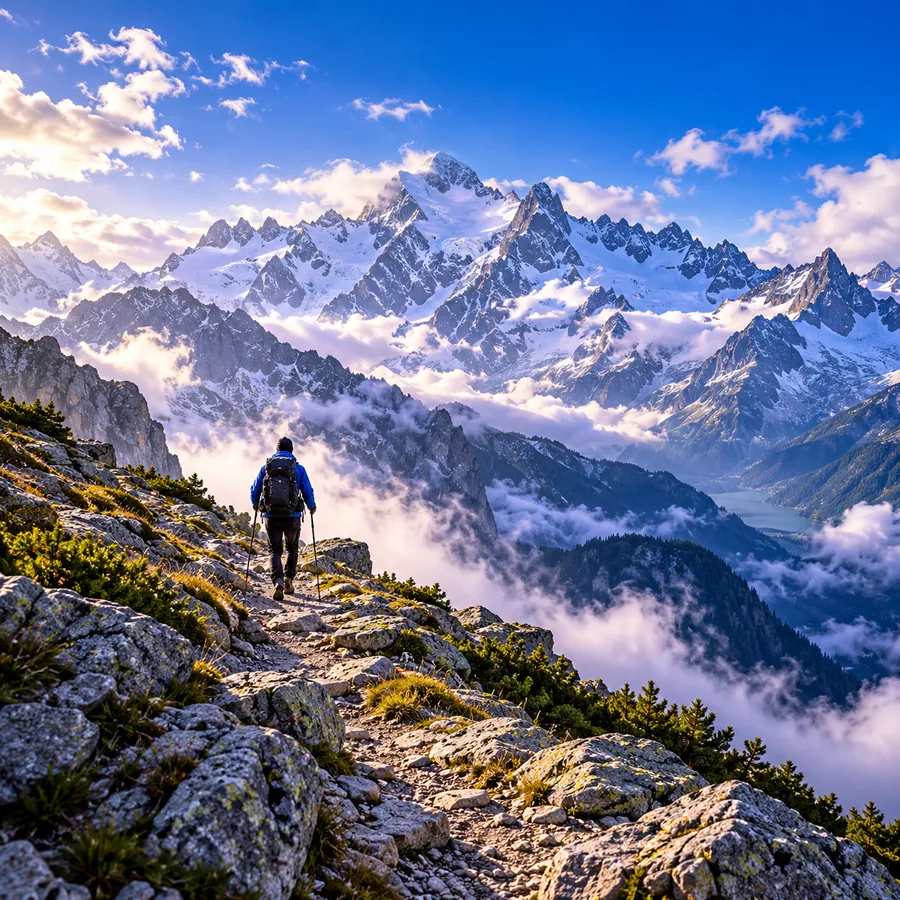 Enhance
result
Enhance
result
Remove the person in the background and reconstruct the pavement and scenery naturally. Keep the main subject and original lighting unchanged.
 Remove
result
Remove
result
Clean up this social photo by removing the small distractions around the subject and preserving the original colors, framing, and mood.
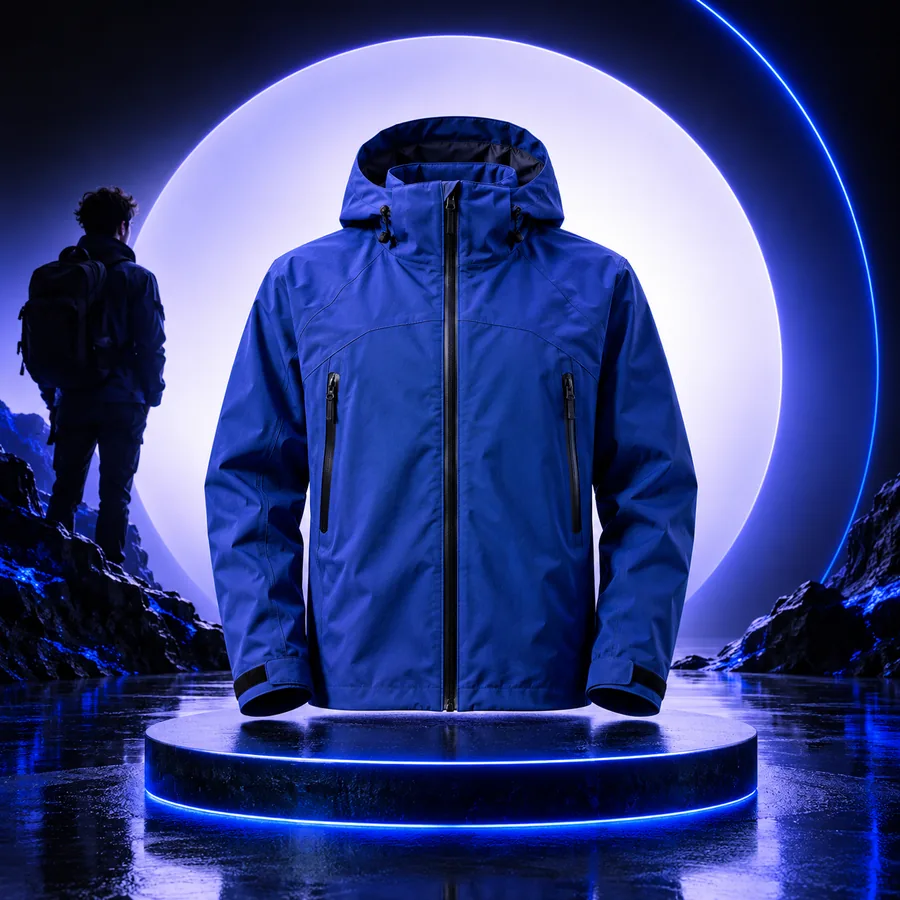 Social
result
Social
result
Replace the cluttered background with a simple neutral studio setting while keeping the product shape, edges, shadows, and colors accurate.
 Background
result
Background
result
Make each prompt concrete: name the unwanted element, protect the important subject, and describe the finish you want.
At a glance
The workflow is designed around the practical stages of a mobile edit, with attention on the image rather than a crowded set of controls.
Ready to edit
Bring one camera-roll problem to the workflow and describe it clearly. Snapedit helps you focus on the change that matters, whether that means removing a distraction, improving a portrait, or simplifying a background.
Scenario FAQ
Yes, the workflow is intended for editing a photo you already have on your phone. Choose the image that needs attention, describe the change, and review the result before sharing it.
Focused requests tend to be easiest to judge, such as removing a background distraction, simplifying a setting, or improving portrait clarity. Mention the element to change and what must remain untouched.
You can use an object-removal workflow for unwanted people, clutter, or small distractions. Always inspect the surrounding edges and repeated textures because complex backgrounds may need another pass.
Yes, a portrait-enhancement request can focus on clearer detail, balanced lighting, and a natural finish. Keep the instruction specific and check that the expression and skin texture still look authentic.
Yes. Review the image at a useful zoom, especially around hair, hands, text, object edges, and patterned backgrounds. If the result changes an important detail, revise the request or keep the original.