Travel photographers
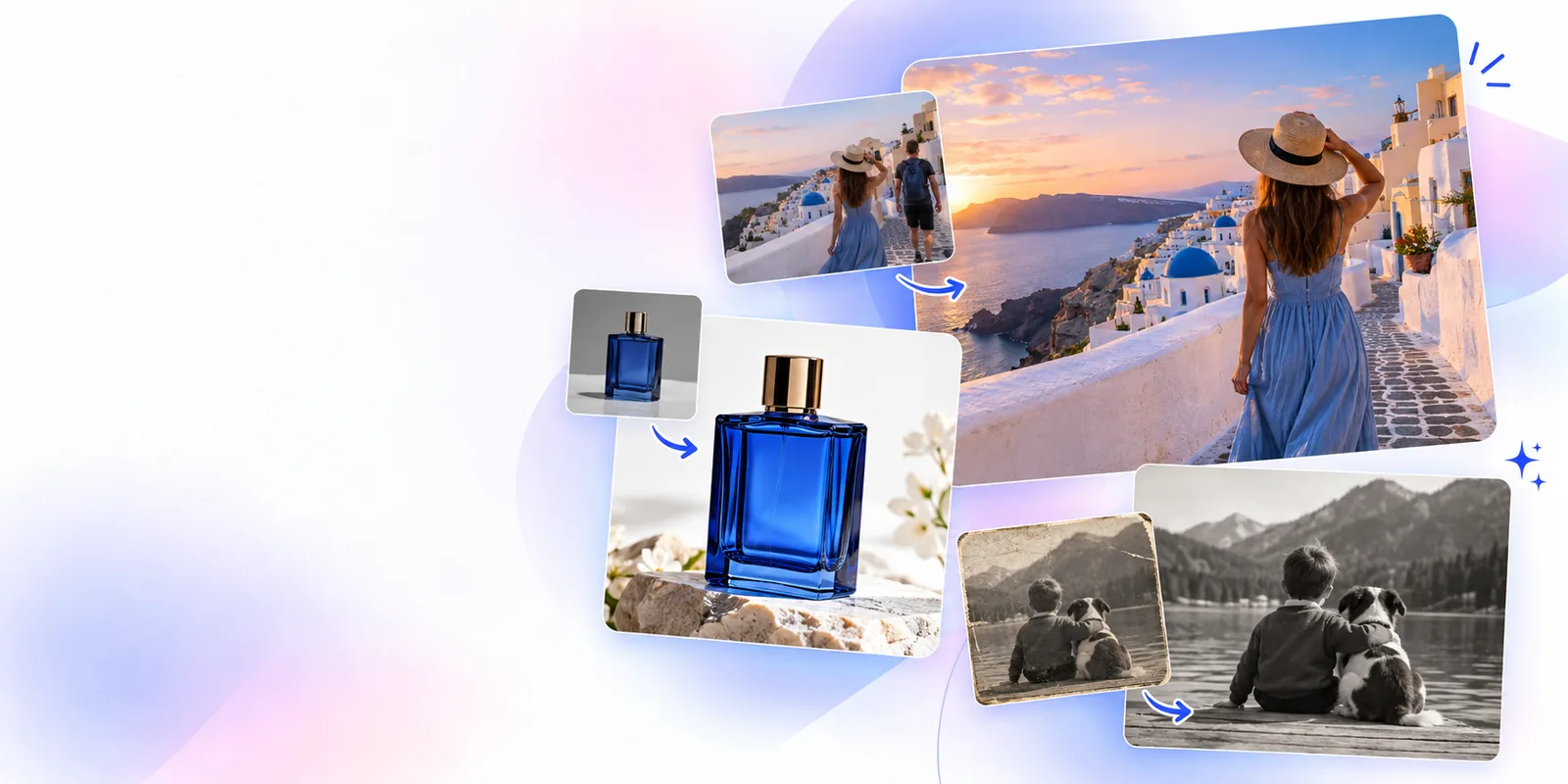
A stranger, sign, bin, or temporary obstruction appears in an otherwise memorable landmark photo.
The main subject stays prominent while the surrounding scene feels less interrupted.
Object removal
snapedit remove object helps you focus an edit on unwanted visual distractions, from passersby and clutter to small marks that pull attention away from the subject.
Practical edits
The best object-removal result starts with a clear goal. Choose the kind of image you are working on, then describe the distraction precisely.
A stranger, sign, bin, or temporary obstruction appears in an otherwise memorable landmark photo.
The main subject stays prominent while the surrounding scene feels less interrupted.
A product photo includes stray packaging, cables, labels, or background items that weaken the presentation.
The item gets a cleaner visual frame without rebuilding the entire product image.
A photo has a photobomber, sign, reflection, or small object that distracts from the intended post.
The composition feels more deliberate and easier to reuse across social formats.
A family, pet, or outdoor photo contains a minor visual interruption that was easy to miss when the picture was taken.
You can test a focused cleanup instead of cropping away important context.
Simple workflow
Keep the instruction specific and inspect the edges after the first pass. A focused description usually makes the intended edit easier to evaluate.
Open the editing workflow and provide the photo that contains the unwanted object. Choose an image where the surrounding scene is visible enough to guide the cleanup.
Describe what should disappear and where it appears, such as “remove the person on the left” or “clear the cable beside the product.”
Check the edited area, nearby edges, repeated textures, and shadows. If the result needs refinement, adjust the instruction and compare the next version.
Know the edges
Object removal is most useful when the requested change is localized. These caveats help you decide when to refine the instruction or use a different edit.
Dense crowds, foliage, architecture, or repeating patterns may leave visible seams after a large object is removed.
What to do instead
Start with a smaller area, describe the surrounding texture, and inspect the result at full size.
Removing a prominent subject can require the image to reconstruct substantial background detail that was never captured.
What to do instead
Use a tighter crop or remove secondary distractions first so the main edit has clearer visual context.
An object can cast a shadow or appear in glass, water, or a polished surface, so deleting the object alone may not complete the cleanup.
What to do instead
Mention the related reflection or shadow in a follow-up instruction and review both the original and edited areas.
Signs, labels, captions, and watermarks involve readable shapes rather than ordinary scene clutter and may need a more targeted approach.
What to do instead
For text-specific questions, see Can SnapEdit remove text from images? before choosing the workflow.
Choose a starting point
The same basic edit can serve different audiences, but the instruction and review criteria change with the image.
Travel
Describe the unwanted person or object by position and keep the landmark, architecture, or landscape as the priority.
Products
Use object removal to address small distractions around an item while preserving the product edges, materials, and important details.
Portraits
For portraits, specify the background distraction rather than asking for broad changes to the person. This helps keep facial details and clothing consistent.
Visual control
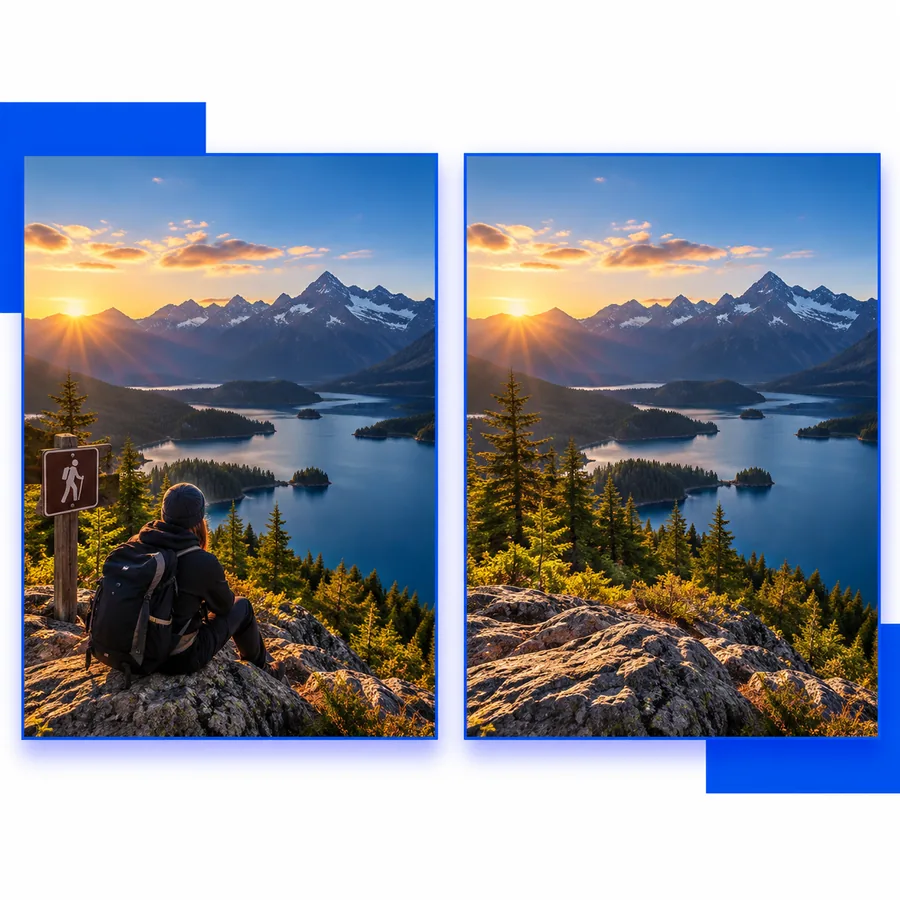
Object removal works best as a controlled cleanup rather than a request to redesign the whole image. Use the first result to spot exactly where more direction is needed.
 01 · Describe
Step 1
A useful instruction identifies the object, its location, and what should remain untouched. This gives the workflow a clearer boundary than a broad request such as “make the photo better.”
 02 · Review
Step 2
The center of a removed area can look convincing while nearby edges reveal repeated textures, broken lines, or an inconsistent shadow. Zoom in mentally by checking the whole surrounding region.
Related workflows
Object cleanup is only one part of a polished image workflow. These related pages cover nearby tasks with different editing goals.
Start an edit
Describe the distraction you want removed, review the result, and decide whether the surrounding scene needs a more precise follow-up.
Common questions
It is intended for focused cleanup of unwanted visual elements in a photo, such as a person in the background, a stray item, or a small distraction. The result depends on how clearly the object and surrounding scene are described.
Name the object and give its position in the image, such as “remove the person on the right” or “remove the cable beside the product.” Also mention important details that should remain unchanged.
A large removal in a crowded, detailed, or repetitive scene can be more difficult because the surrounding area has to be reconstructed. Review the result carefully and try a more focused instruction or a tighter crop when necessary.
Not necessarily. Shadows, reflections, and related marks may need to be named separately because they can remain after the main object is removed. Inspect the surrounding area before finishing the edit.
Text can require a more targeted workflow because letters and labels have structured shapes and may be part of a sign or product. For that use case, see Can SnapEdit remove text from images? and review the result closely.