Travel photographers
Clean up signs, passers-by, or small distractions from a holiday photograph.
A simpler scene that keeps attention on the place and the subject.
Browser photo editing
Snapedit online free gives you a browser-focused starting point for testing photo edits without first committing to a desktop workflow. Upload an image, describe the change you want, and review the result before deciding how to continue.

One-line value
The online surface is most useful when you want to move from an image and a clear instruction to a reviewable result without planning a full editing session.
Clean up signs, passers-by, or small distractions from a holiday photograph.
A simpler scene that keeps attention on the place and the subject.
Prepare a product or service image for a listing, post, or announcement.
A more focused visual with fewer background distractions.
Refine a portrait or lifestyle image before sharing it with an audience.
A polished draft that is easier to compare with the original.
Test a simple change without opening a complex desktop editor.
A quicker way to decide whether the requested edit is worth keeping.
Surface comparison
The right surface depends on how much control, continuity, and file handling your project needs. This comparison keeps the choice practical rather than assuming one route fits every image.
| Online route | Local editor | |
|---|---|---|
| Where work begins | In a web browser with an uploaded image and an edit request. | Inside software installed on a computer or device. |
| Setup effort | Usually starts with opening the route and preparing an image. | Requires installation, updates, and familiarity with the application. |
| Best for | Quick experiments, one-off adjustments, and visual review. | Repeatable projects that need a consistent editing workspace. |
| Control style | Instruction-led changes with the result assessed after processing. | Direct controls, layers, selections, and manual adjustments. |
| Project continuity | Well suited to a focused session around one image or task. | Better suited to saved projects and ongoing revisions. |
| Before sharing | Review the returned image and confirm that the change matches your intent. | Inspect the document, settings, and export choices before saving. |
| Privacy checkpoint | Check upload, retention, and usage terms before sending sensitive images. | Review the application's storage, sync, and backup settings. |
How it works
A focused online workflow has three practical stages: prepare the source, state the desired change, and inspect what came back.
Choose a source image that is clear enough for the requested change, and remove anything you do not want to upload.
Use direct language about the object, area, or visual quality you want changed. Mention what should remain untouched.
Compare the result with the original, check edges and important details, then decide whether it is ready for your next use.
Honest boundaries
An online editor can reduce setup, but it does not remove the need for judgment, suitable source material, or careful file handling.
Very small, blurry, compressed, or heavily obstructed images may not provide enough visual information for a convincing change.
What to do instead
Start with the clearest original available and compare the output at full size.
A browser workflow is not the same as a full layer-based editor with precise masks, history, and granular adjustments.
What to do instead
Use a local editor when the image needs exact retouching or a repeatable production process.
A short request can leave room for interpretation, especially when several objects or people are close together.
What to do instead
Name the target area, describe the desired look, and say what must stay unchanged.
Uploading a private, confidential, or client-owned image requires a review of the current handling terms and permissions.
What to do instead
Avoid sensitive uploads unless the route's policies meet your requirements.
Visual workflow
The strongest browser workflows keep the requested change visible and specific, so you can judge the result instead of guessing what happened.
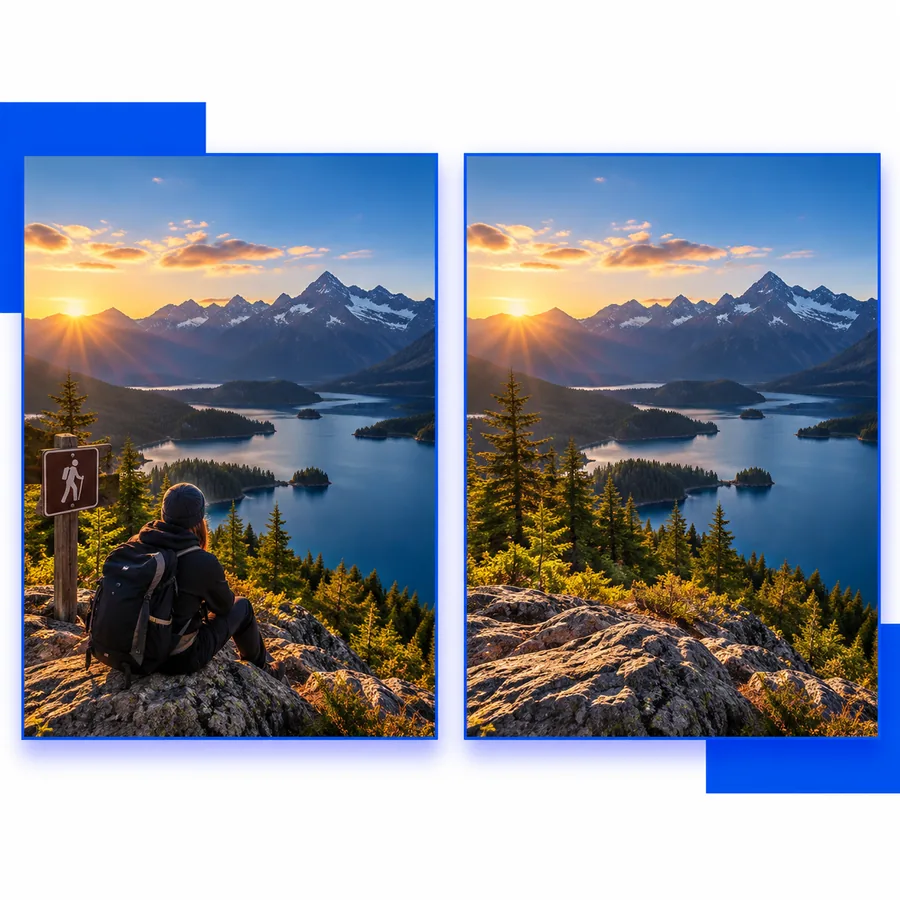 Focused input
Step 1
A useful request identifies the image's purpose and the single change that matters most. That keeps a quick online session focused on the visual outcome.
 Review first
Step 2
Reviewing the edited image beside the source helps you catch altered edges, missing details, or changes that go beyond the request. Keep the original until the result is approved.
Choose your use case
The same online surface can support different image tasks. Begin with the panel that best matches the reason you are editing today.

Personal
Use a clear request when a personal image needs a small cleanup or a more balanced presentation. Keep the original so the decision remains reversible.

Business
For a listing, announcement, or service image, describe the subject and the intended context. Review the result for accurate details before publishing.

Creator
A creator can use the route to test a visual direction quickly, then decide whether the result is ready or needs more controlled editing elsewhere.
Next step
Open the editing route with a specific task in mind. Review the result carefully, keep your original, and decide whether the online workflow suits the image.
Common questions
These answers cover the practical questions people usually ask when looking for an online route for photo editing.
It refers to using Snapedit through an online, browser-based route while looking for an option described as free. The exact available tools, limits, and terms can change, so check the destination before uploading an image.
An online route is intended to be accessed through a browser rather than a locally installed desktop editor. Your device, browser, and the current product flow may affect how the experience works.
It can be a sensible starting point for a focused task such as cleaning up a distraction or testing a visual change. Review the returned image carefully, because source quality and the clarity of your request affect the result.
Do not assume that every tool, output, limit, or usage condition is included under a free option. Confirm the current terms and any notices shown in the route before relying on it for an important project.